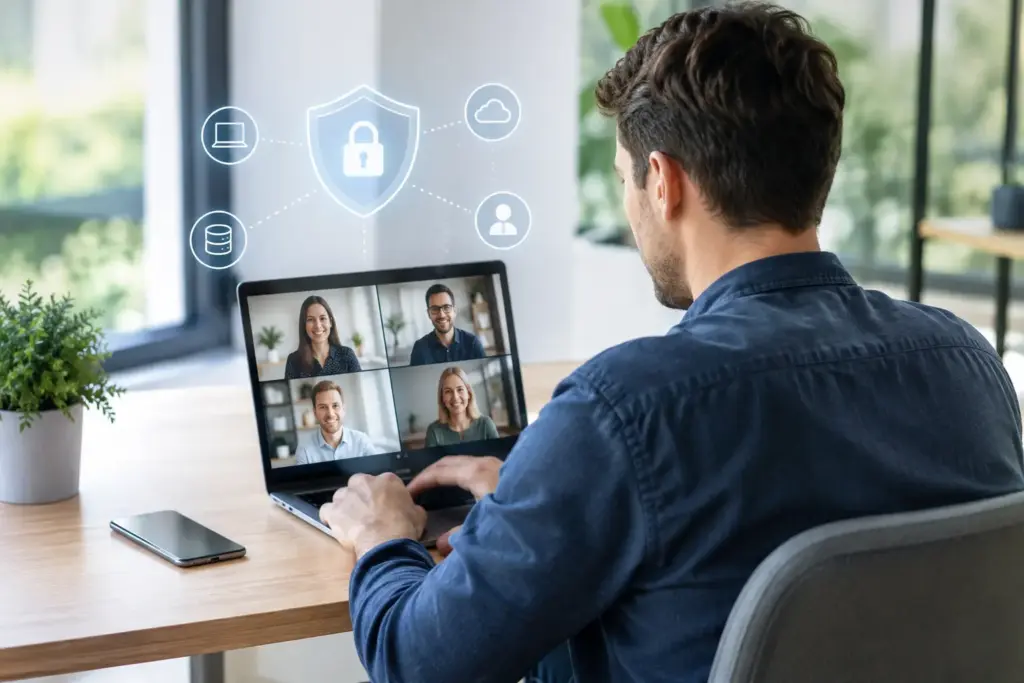
An employee calls because a laptop is slow, an update is stuck, or an account has been unexpectedly blocked. If that employee is working from home, at a client's, or on the road, you don't want to have a device brought to the office first. Securely managing workstations remotely makes it possible to help quickly without losing control of your IT environment.
For SMEs, this is not a luxury. Employees work at various locations, use cloud applications, and expect to be able to log in securely from anywhere. At the same time, you want to prevent a lost laptop, outdated software, or an overly broad account from posing an immediate risk to your organization. Good remote workplace management brings productivity and security together.
Why remote management is more than just watching
Remotely logging into a computer is useful for support, but it is only one part of professional workplace management. A manageable workplace begins with insight: which devices are in use, what software is installed on them, who has access, and do all devices comply with security rules?
Without that overview, management becomes reactive. You only take action when someone is unable to work or when something goes wrong. With central management, however, you can act proactively. Think of updates that are rolled out automatically, security settings that are the same everywhere, and notifications as soon as a device deviates from the norm.
This is especially valuable as you grow. With five workstations, you can still resolve many issues manually. With twenty or fifty workstations, that approach takes time, discrepancies arise between devices, and the risk of errors increases. Central setup ensures that a new employee works in a safe, well-configured environment from their very first day.
Securely managing remote workplaces starts with identity
The security of a workplace stands or falls with the question of who is granted access. A password alone is usually not enough for this. It can be leaked, reused, or intercepted. Therefore, multi-factor authentication is a logical foundation: in addition to a password, the user confirms the login in a second way.
The principle of minimal privileges also helps. An employee does not need to be the administrator of their own laptop by default and only requires access to files, applications, and systems necessary for work. This limits the damage if an account is misused and reduces the likelihood of unwanted software being installed.
Good access rules should not make the work unnecessarily difficult. This requires a practical balance. A financial employee who regularly processes payments, for example, may require additional checks. For an employee who only uses email, documents, and a planning system, a simpler yet still secure setup may suffice. The risks and activities together determine which rules are appropriate.
Only allow devices if they meet the basic requirements
A secure account can still be at risk on an unsecured laptop. Therefore, you can link access to company data to the device status. Is the disk encrypted? Is the security software active? Are important updates installed? If the device does not meet the requirements, you can restrict access until the problem is resolved.
This does not mean that every device must be identical. Some organizations work exclusively with business laptops, while others also use mobile phones or private devices. With private devices, it is especially important to separate business data from personal data. What is technically possible and desirable depends on your policy, the sensitivity of the information, and the agreements with employees.
Updates and security without a manual round of desks
Outdated software is a common entry point for cybercriminals. Operating systems, browsers, and business applications require updates to address known vulnerabilities. If you let employees decide for themselves when to install, you quickly end up with an environment where some devices lag behind by months.
With central management, you schedule updates at a logical time and verify that the installation was successful. Critical security updates can be rolled out faster, while major changes are first tested with a small group of users. This phased approach prevents a faulty update from immediately affecting the entire team.
In addition to updates, endpoint security attention. It monitors devices for suspicious files, unusual activity, and known threats. Its strength lies not only in the software itself but also in the follow-up. A notification that no one sees or understands offers little protection. Therefore, ensure it is clear who assesses notifications and what steps follow in the event of an incident.
Fast support, without unattended access
Remote support is often the most visible benefit for employees. A specialist can look at an error message remotely, adjust settings, or investigate a problem without travel time. This prevents downtime and is convenient for employees who do not work at the office.
At the same time, this access requires clear ground rules. Grant administrators only the rights they need, define who is allowed to work on which systems, and use temporary access where possible. An employee must be able to see when someone is monitoring their activity. Extra care is required for work involving sensitive information, such as financial records or personal data.
Also establish agreements for emergencies. Who is authorized to block an account if a phone or laptop is lost? Who decides on file recovery? And how do you reach the right person outside of office hours? Especially when the pressure is high, you don't want to have to figure out who is responsible for what.
Protect data if a device is lost
Leaving a laptop on a train, losing a phone, or dealing with theft: it happens to organizations of all sizes. Proper preparation determines whether it is an annoying incident or a data breach.
Disk encryption ensures that data on a lost device is not easily readable. Additionally, with remote management, you can lock a device, delete business data, or immediately revoke access to the associated account. This only works properly when devices have been correctly registered and managed in advance.
Backups remain necessary, but they are not a substitute for security. A backup helps you restore your data after deletion, a technical failure, or an attack. It does not prevent unauthorized access. Therefore, regularly check whether recovery actually works and which data is included in the backup. A backup that has never been tested provides primarily a false sense of security.
A practical basis for your management policy
You do not need to implement all security measures at once. Start with a clear foundation and develop it step by step. For most SMEs, this foundation consists of four components:
- an up-to-date record of all business devices and users;
- multi-factor authentication and access rights appropriate to the position;
- central management of updates, security settings, and endpoint security;
- a fixed procedure for loss, employee departures, and technical incidents.
Next, you can assess where additional measures are needed. If your team works extensively with customer data, stricter access controls and retention periods are often advisable. If you have many temporary staff or external partners, guest accounts and the timely revocation of access deserve extra attention. The best setup is not necessarily the most complex, but rather the one that demonstrably suits your organization and is actually used.
Management as part of continuity
Secure remote management is ultimately about more than technology. It provides employees with a reliable workplace, prevents unnecessary interruptions, and makes you less dependent on a single person who knows exactly how everything is set up. Moreover, you can react more quickly when someone starts, changes roles, or leaves the company.
Therefore, opt for documentation that remains understandable. Record not only technical settings, but also why choices were made and who is responsible. This way, your environment remains manageable when your organization changes or when a designated contact person is absent.
Cloudformatie helps organizations set up that foundation in a clear and organized manner and takes daily management off your hands. Ideally, a well-managed workplace is barely noticeable: employees can work, problems are detected early, and you have room left for your business.